Managing orders via desktop app
Install the free Restanaut desktop app on a computer at your restaurant to receive, print and manage orders in real time.
The Restanaut desktop app runs on a computer at your restaurant and stays connected to your online ordering page. New orders appear instantly with a sound alert, print on your receipt printer automatically, and can be accepted or rejected with one click. The app works on Windows and Linux, starts together with the computer and runs quietly in the system tray.
Download the app
The Microsoft Store version is the easiest option on Windows and updates automatically. The GitHub downloads are the same app, published with every release.
How to install on Windows
- Microsoft Store: press Install and you're done.
- GitHub installer: download the Restanaut-Setup .exe file from the latest release and run it.
- Windows may show a security warning about an unverified app. This is normal, choose 'More info' and then 'Run anyway'.
- Follow the installation wizard, administrator rights are not required.
- Keep the autostart option enabled so the app launches together with your computer.
How to install on Linux
- Download the Restanaut AppImage file from the latest release and move it to a folder where you keep applications, for example ~/Applications.
- Make the file executable: right-click it, open Properties and enable 'Allow executing as program', or run chmod +x on it in a terminal.
- Double-click the file to start the app. It works on most desktop distributions from 2022 onward, such as Ubuntu 22.04+, Debian 12+, Fedora or Mint, with no extra packages needed.
- On first run the app adds itself to autostart, so it comes back after a reboot.
First-time setup
- Choose your language.
- Connect the app to your restaurant: create a printer in your restaurant settings, copy its connection URL and paste it into the app.
- Set up your ESC/POS receipt printer: choose Network for a printer on your local network (enter its IP address and port, usually 9100) or Local for a printer installed on this computer, then send a test printout to make sure everything works.
Managing orders
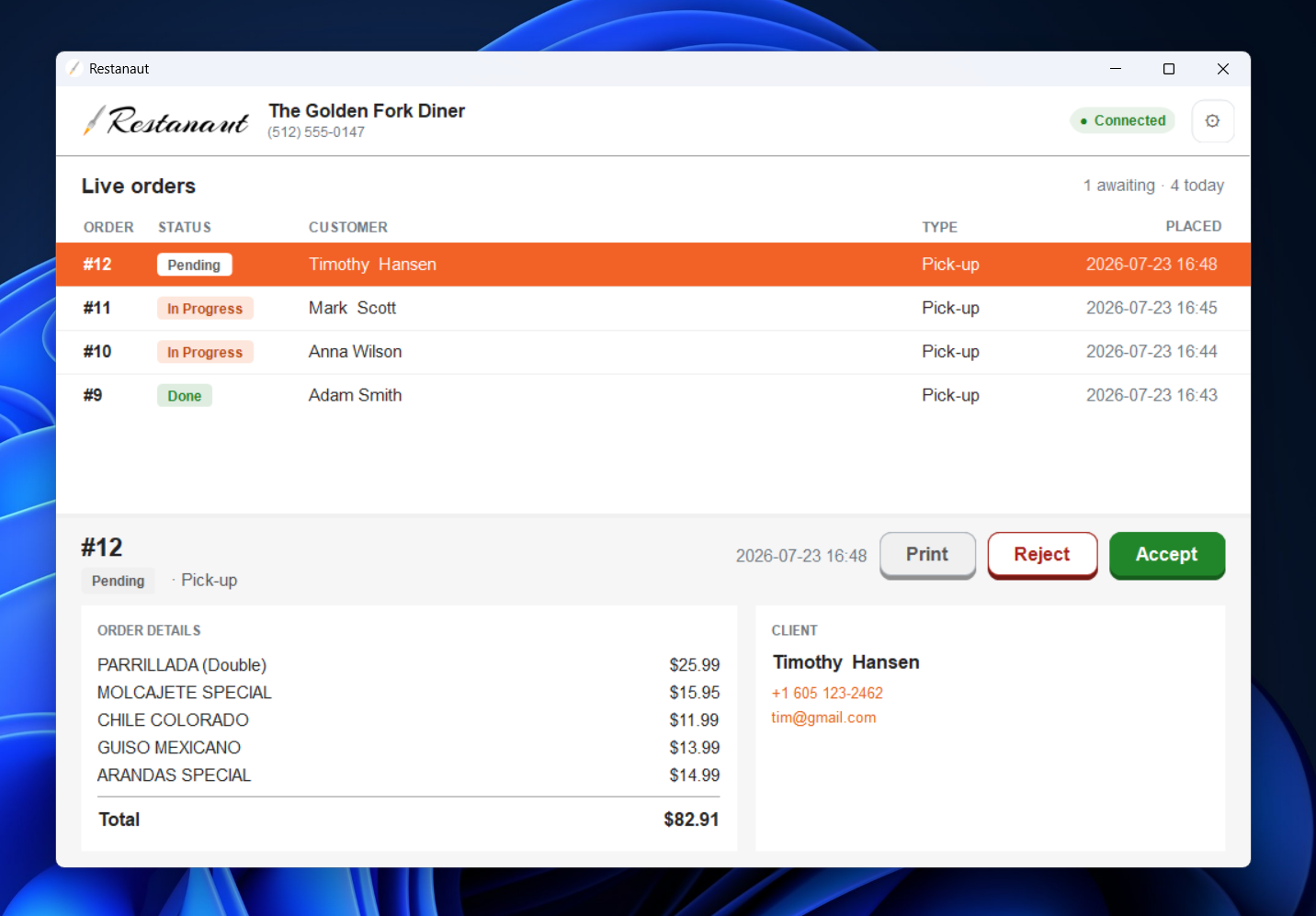
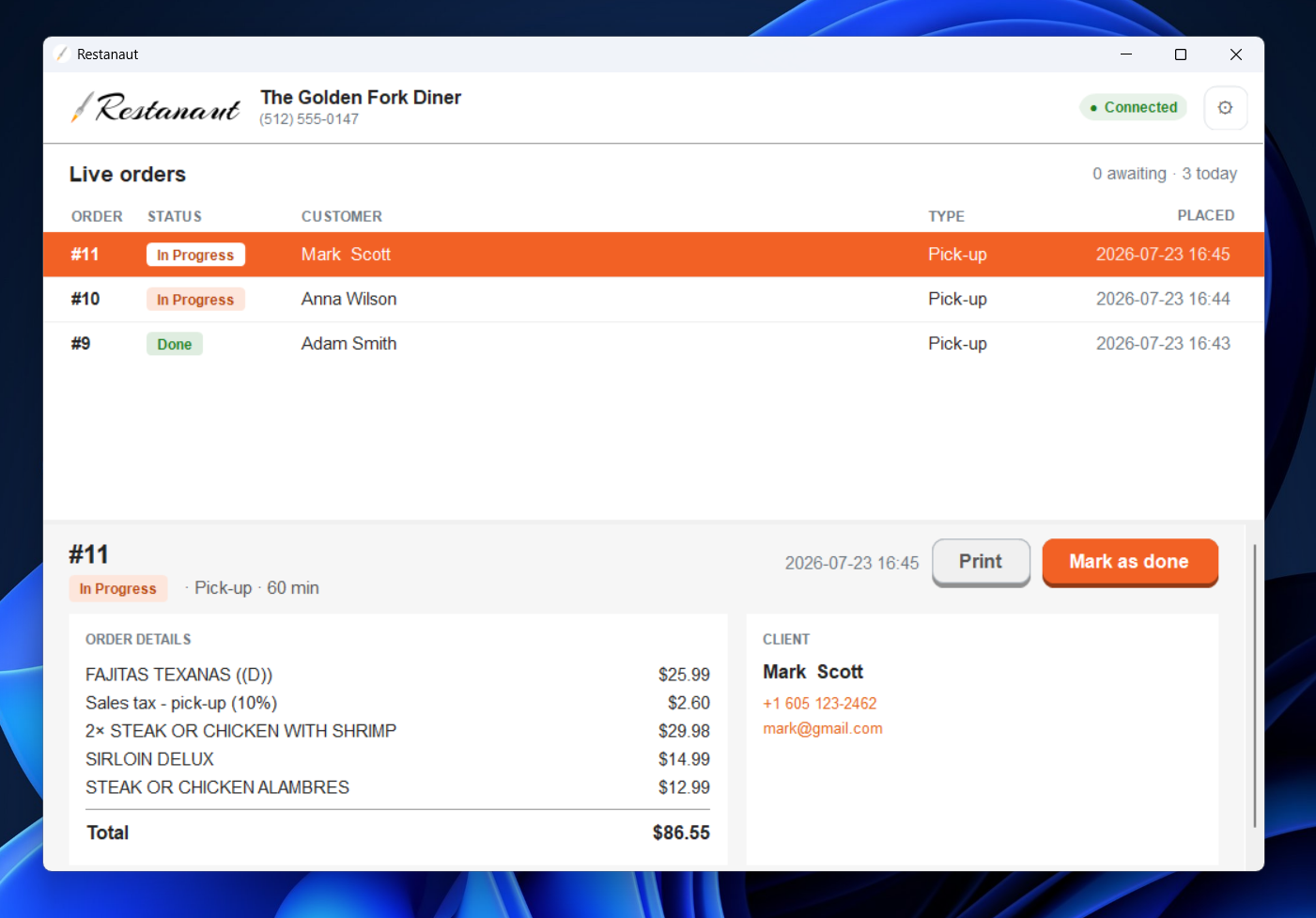
- Live orders appear in a list the moment customers place them, with a sound alert.
- Select an order to see its full details: items, totals, delivery method, payment and the customer's contact details.
- Accept an order and tell the customer the estimated waiting time in minutes, or reject it with a reason.
- Mark orders as done when they are ready, or print any order again at any time.
Everything stays in sync with your dashboard, an order accepted in the app updates your orders page and notifies the customer immediately.
Automatic printing and accepting
By default the app prints and accepts every new order for you, so the kitchen can start right away. If you prefer to review each order yourself, turn this off in the app's settings. The settings also let you change the language, connection details, printer, autostart and the new order sound at any time.
Next step: create a printer in Restanaut and get its connection URL
Ready to try it yourself?
Try It for Free