Setting up a custom domain
Serve your restaurant page from your own domain, like myrestaurant.com, step by step.
Every restaurant gets a hosted page on Restanaut out of the box. With a custom domain, that same page, menu, ordering and all, is served from your own address, like myrestaurant.com. It looks more professional and it's easier for customers to remember.
Custom domains are available on the Business plan.
Step 1: Get a domain
If you don't own a domain yet, register one with any domain registrar. If you already have a website domain, you can also use a subdomain like order.myrestaurant.com for your ordering page.
Step 2: Enter the domain in Restanaut
- Open your restaurant settings page.
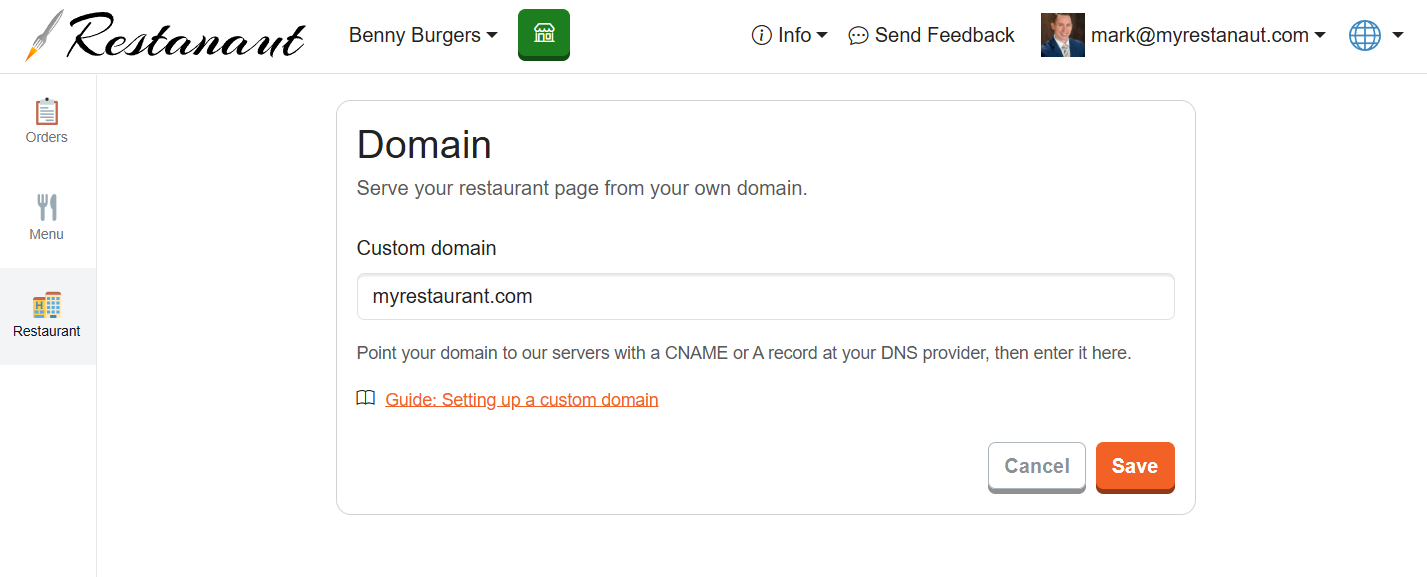
- Find the Domain card and press Edit.
- Enter your domain, for example myrestaurant.com, and save.
Each domain can be connected to one restaurant, if the domain is already used by another restaurant, you'll be asked to pick a different one.
Step 3: Point the domain's DNS to Restanaut
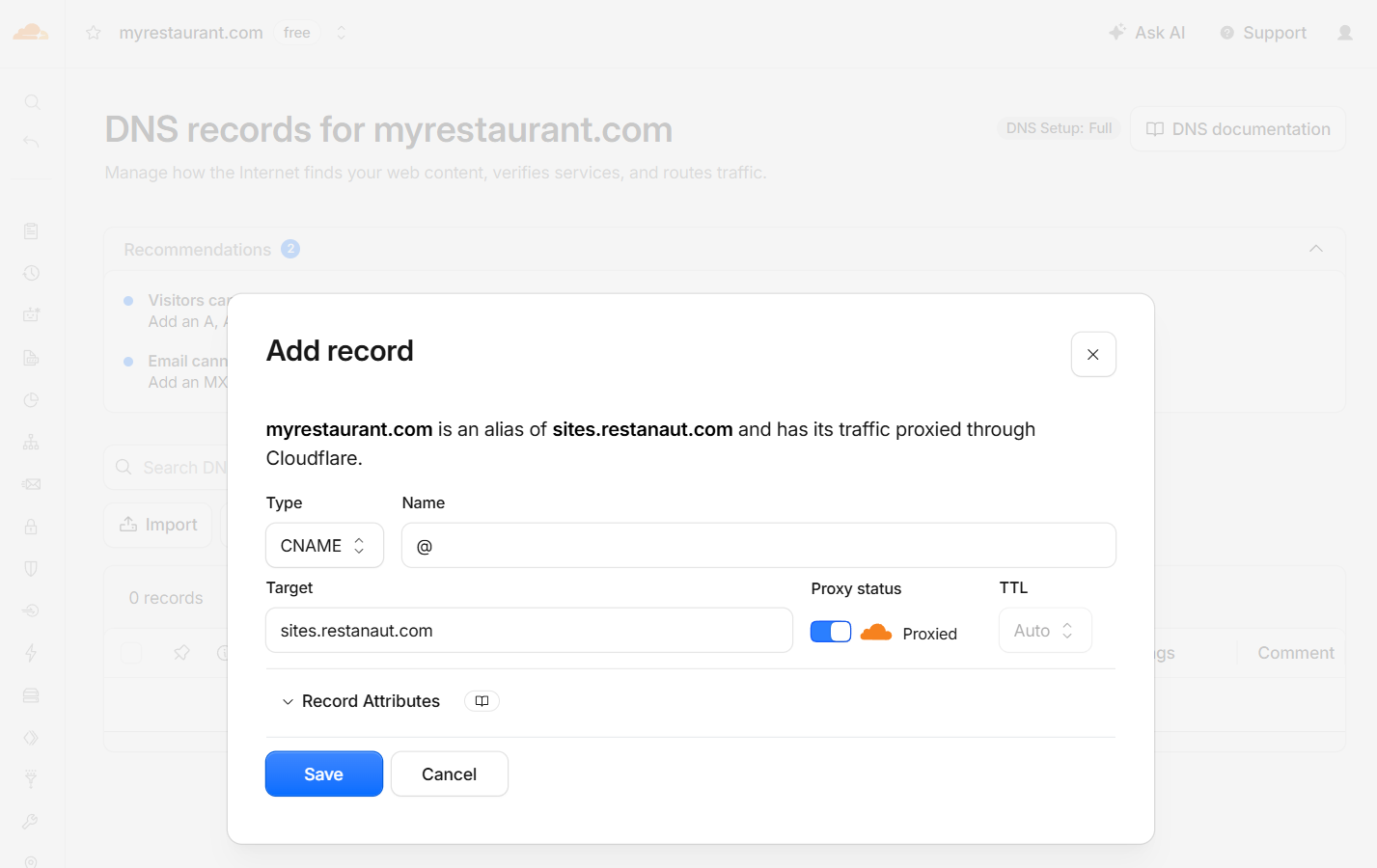
Log in to your DNS provider, usually the company where you registered the domain, and point the domain to our servers with a CNAME record, pointing to sites.restanaut.com
Step 4: Wait for DNS to propagate
DNS changes can take from a few minutes to a couple of hours to spread across the internet. Once they do, opening your domain shows your restaurant page, with your menu and ordering fully working.
Troubleshooting
- Page doesn't load: double-check the DNS record type and value, and give propagation more time.
- Domain marked as invalid: enter just the domain name, like myrestaurant.com, without http:// or paths.
- Still stuck? Contact us and we'll take a look together.
Ready to try it yourself?
Try It for Free